Azure Storage
Please login your vimqu account then click Storages -> Azure. You will see the following form:
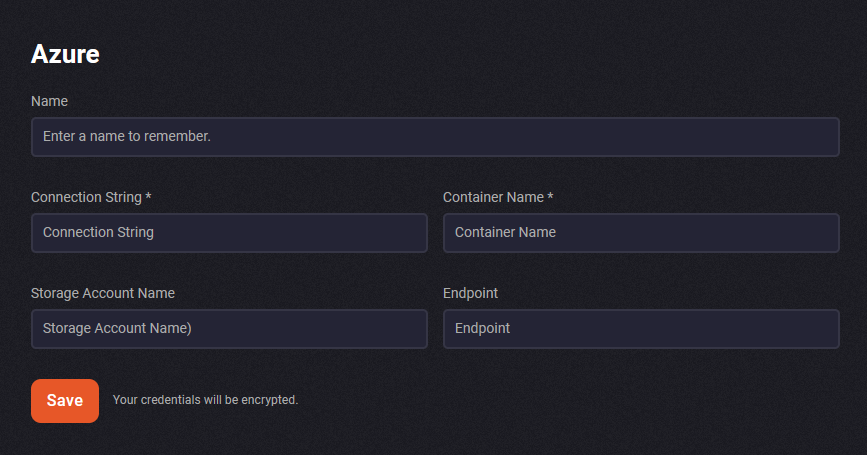
The configuration we need:
warning
Please copy-paste carefully
Configuration
Name
This field is for you. You can write any text you want.
Connection String
We need to add connection string. This key is under "Access Keys" page.
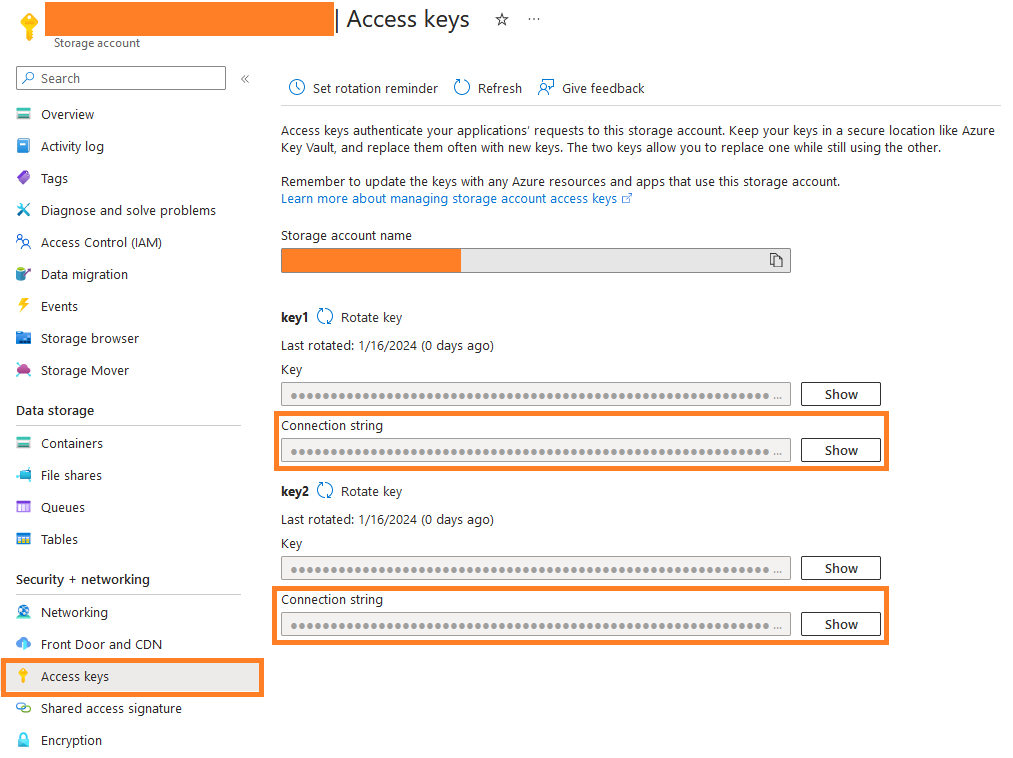
Connection String is under key1 and key2. You can use one of them.
Container Name
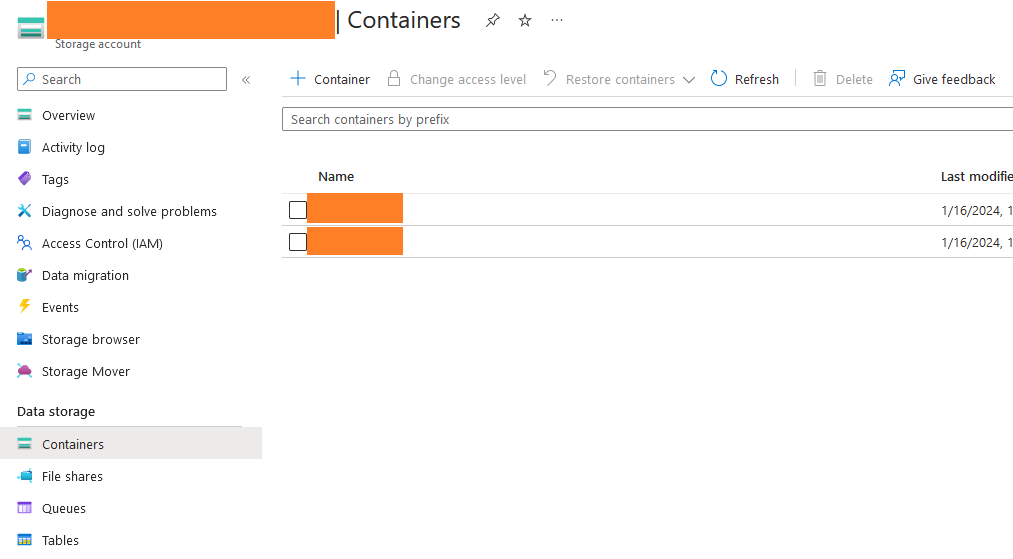
Click Containers link under "Data Storage" field. Copy the container name you want.
Storage Account Name
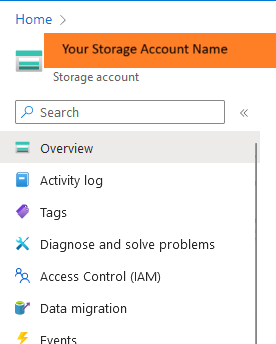
In the upper left corner it says "Storage Account Name". You should use this name.
Endpoint
Open the json view in storage account overview.

We need this url in json: properties.primaryEndpoints.blob